


AR Draw Sketch – Drawing Apps
4.568.00 Reviews
App Specs
- Version
- 1.7.4
- Updated On
- License
- Free
- Downloads
- 1,000,000+
- Developer
- Maxlabs Photo Editor
- Categories
- Art & Design
- Platform
- Android
Screenshots
 Analysis by AppCompare
I judge a tracing app less by whether it promises effortless art and more by whether it helps me get a usable outline onto a real page. AR Draw Sketch is built around that practical idea: use a phone camera to line up an image with a surface, then draw by following the visible guide. It can make an intimidating reference feel approachable, but it doesn’t replace the decisions that make a drawing yours. I see it as a hands-on aid for learning, experimenting, and getting started—not a shortcut to polished work.
That distinction matters when choosing among drawing apps. A conventional sketching app is better if you want to paint directly on a screen, work with layers, or make a finished digital illustration. A photo editor is better for changing an image itself. This tool is more appealing when the goal is to move a reference from a screen onto paper and practice controlling a pencil or another physical medium.
Getting Started with AR Magic
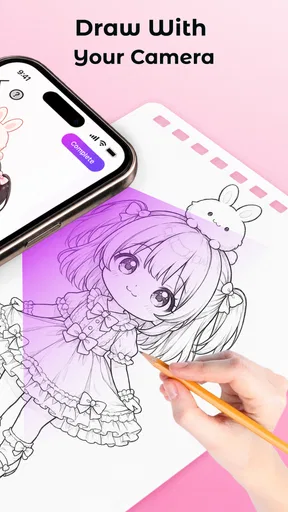
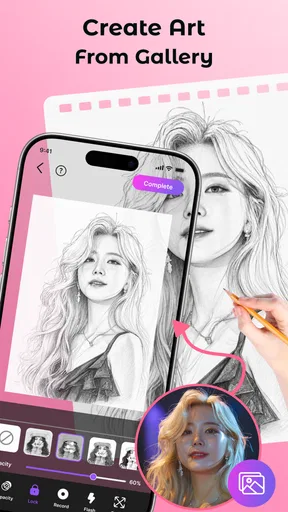
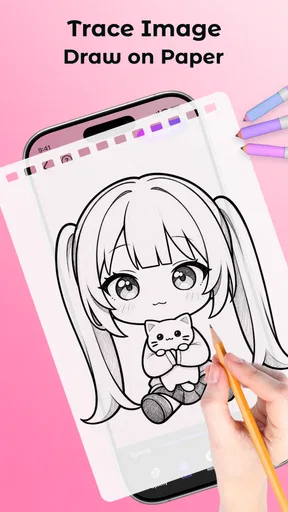
So, what's the deal with AR Draw Sketch? The idea is simple yet genius. You use your phone camera to project an image onto a real-world surface, and then you trace it. Seriously, it's like having a personal art instructor hovering over your shoulder. You just pick a picture, adjust it on your screen, and start tracing. It's straightforward, easy, and surprisingly fun.
The app's interface is user-friendly, and I was up and running in no time. There's a quick tutorial to get you started, and then you're off to the races. The magic lies in its ability to overlay a digital image onto a physical surface, making it super easy to transfer complex images onto paper, canvas, or even your walls (if you're feeling adventurous).
For a first session, I’d keep the setup modest: choose a clear reference, place the paper on a firm surface, and get the phone steady before tracing. A phone stand or another secure support can reduce unwanted movement without requiring a special accessory. If the image shifts while your pencil is on the page, it becomes harder to tell whether a line is inaccurate or the guide has moved. I’d also start with a small drawing; a short, manageable exercise makes it easier to learn how the overlay behaves before committing to a large sheet.
Features That Stand Out
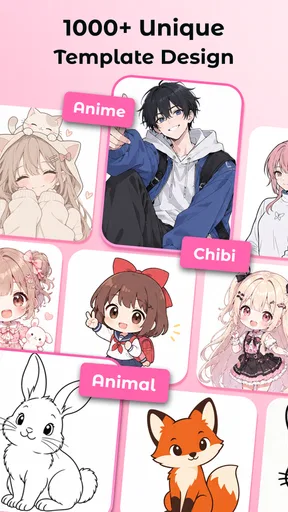
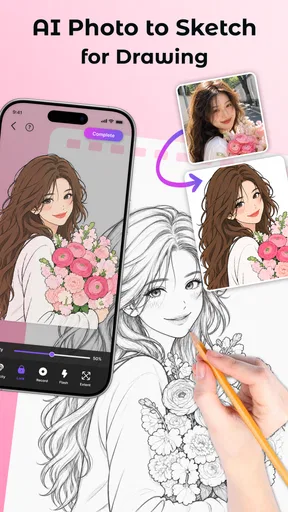
One of the coolest features is the library of images you can choose from. Whether you're into landscapes, portraits, or abstract art, there's a little something for everyone. You can also upload your own images, which is perfect for those personal touches.
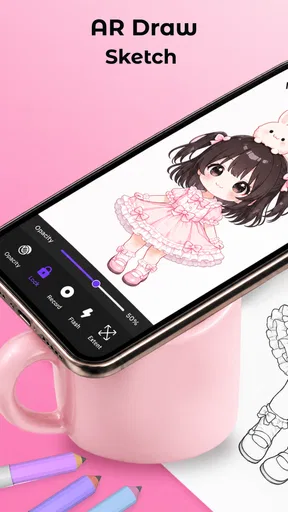
Another standout feature is the ability to adjust the transparency of the image. This is a game-changer, allowing you to see your sketch as you work. Plus, the app supports various drawing tools, so you're not just limited to pencil sketches. Think of it as your digital sketchpad.
Worth Reading Before You Choose

Baby Panda World Brings Quick Play to Modern Phones, but Its Game Library Feels Busy

ESPN’s Live Game View Makes Following Close Games Easier

QuizzLand Review: A Good Fit for Short Trivia Breaks, Not Every Player

Basketball Stars: Multiplayer Is Fast, but Can It Recover When Matches Go Wrong?

WEBTOON Turns Phone Updates Into a Better Reading Routine

Link to Windows Runs on Shared Habits, Not Social Feeds
Before settling into a longer drawing, I’d check the placement and transparency with a few light guide marks. The right balance depends on your paper and lighting: if the image is too prominent, it can distract from the marks you’re making; if it is too faint, important contours may be difficult to follow. I find it useful to treat the overlay as a reference rather than a rule. Trace the big shapes first, then look away from the screen and compare the drawing with the original image. That small pause helps prevent a common tracing trap: copying every visible edge without understanding the form.
Putting It to the Test
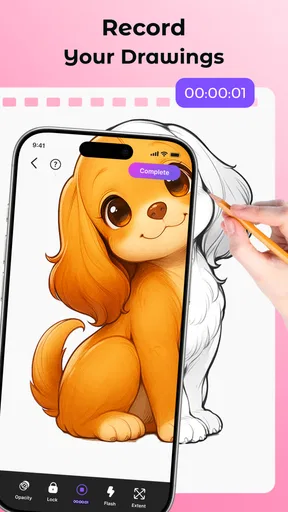
Now, I put the app through its paces with a portrait of my dog. I won't lie, I'm no Picasso, but the results were pretty impressive. The AR overlay made it easy to capture intricate details, and the adjustable transparency was a lifesaver in getting the shading just right.
Tracing with the app was surprisingly therapeutic. It's like those adult coloring books but with a high-tech twist. Plus, it’s super satisfying to see your art come to life, especially when you’re working with complex images you wouldn’t normally dare attempt.
A useful everyday project is a simple greeting card or a small label for a handmade gift. I’d crop the goal mentally, even if the app’s image tools are limited to what is available, and focus on one recognizable feature rather than trying to reproduce every detail. For a portrait, that might be the outline of the head and the position of the eyes; for a plant, the main stem and a few leaves. This makes the session less fussy and gives you a drawing you can finish with your own colors or details afterward. It also keeps the phone from becoming the entire activity: once the main shapes are down, put the screen aside and work from the marks on the page.
Where It Could Improve
While AR Draw Sketch is a blast, it's not without its quirks. For one, you'll need a steady hand and a stable surface for the best results. Also, the app works best in well-lit environments. If your space is dim, you might run into some issues with the AR projection.
Another minor gripe is that the app can sometimes lag, especially with high-resolution images. It’s not a dealbreaker, but it’s something to keep in mind if you’re planning on tackling a large project.
Those limitations shape what I’d use it for. It suits short practice sessions, simple transfers, and references where the overall outline matters more than tiny precision. I wouldn’t choose it for a large, highly detailed commission or a drawing that needs exact proportions throughout; keeping a camera, page, and hand aligned for a long session can become tiring, and lag can interrupt the rhythm. In those cases, a printed reference beside the page, a grid method, or a dedicated digital drawing setup may be more reliable. The trade-off is that those approaches ask you to do more of the visual measuring yourself.
Who Will Get the Most from It
I’d recommend this to beginners who want a friendlier first step into drawing, to parents looking for a guided activity to do together, and to hobbyists who enjoy transferring a favorite image onto a physical surface. It can also help someone who already sketches but wants to study contours by tracing, then repeat the subject freehand to see what they have learned. The key is to treat the overlay as scaffolding: it can help with placement, but it cannot teach every choice about pressure, line quality, or shading on its own.
I’d skip it if your main aim is to create finished digital art, if you need precise professional drafting, or if you dislike working with a phone positioned over your workspace. It is also a less natural fit for people who want to draw freely without a reference. For those goals, a traditional drawing app, a paper reference, or simply a blank sketchbook may be a better match. The value here is specifically in bridging an image on a screen and marks made by hand.
Settings and Habits That Make Sessions Smoother
The most useful setting to revisit is transparency, because the ideal level changes with each reference and work area. I’d check it again after adjusting the phone or changing the room’s light rather than assuming one setting will suit every session. If the camera view feels visually busy, simplify the task: use a reference with a strong silhouette, work on a clean sheet, and avoid beginning with a crowded scene. This is not a hidden trick; it is a practical way to make the image easier to interpret.
For repeat practice, I’d keep a small set of familiar subjects—one object, one simple plant, and one portrait—so I can compare how my hand handles different contours. Repeating the same outline once with the guide and once without it is more informative than tracing a new image every time. The first pass helps with placement; the second reveals which shapes I actually remember. That makes the app useful as a learning prompt rather than just a transfer tool.
There is also a sensible trade-off between reference detail and the phone’s responsiveness. Since high-resolution images may lag, I’d choose a clear image at a practical size instead of defaulting to the most detailed file available. For a small sketch, intricate texture rarely improves the result; strong edges and readable shapes matter more. If performance becomes distracting, switching to a simpler reference is a better response than repeatedly fighting the same slow session.
Cost, Compatibility, and What to Expect
The app is free to download, while in-app purchases are listed from about fifteen to forty dollars per item. I’d try the basic drawing workflow before spending anything and decide whether the available image choices and tools fit the way I actually draw. A paid option is only worthwhile if it solves a specific need for you; the core question is whether you enjoy tracing with a camera-guided reference, not whether you can collect more templates.
It is an Art & Design app from Maxlabs Photo Editor, with an Everyone age rating. Its average rating is 4.8 from around 2,800 ratings, and it has passed 500,000 installs. The current version is 1.1.1, it was released on December 12, 2025, and it requires Android 7.0 or later. Those details make it easier to judge whether it fits your device and comfort level, but they don’t change the basic hands-on nature of the experience: you still need a steady setup and patience with the drawing itself.
One question people often have is whether the app will do the drawing for them. It won’t: the camera guide helps you follow an image, while your hand supplies every mark. Another practical question is whether it works for personal pictures; uploading your own image makes that possible, and a simple, well-lit reference is usually easier to trace than a busy one. If you are wondering whether it suits children or a casual family activity, the Everyone rating and straightforward tracing idea make it approachable, though an adult may still need to help position the phone and keep the page steady.
Final Thoughts
All in all, AR Draw Sketch is a fantastic tool for anyone looking to up their drawing game. Whether you're a beginner trying to learn the basics or a seasoned artist wanting to experiment with AR technology, there's a lot to love here. It's innovative, fun, and, most importantly, it makes drawing accessible to everyone.
If you're eager to try it out, the app is available for download on both Android and iOS. So, grab your phone, find a cozy spot, and unleash your inner artist with AR Draw Sketch. Who knows? You might just surprise yourself with your newfound drawing prowess.
My final advice is to judge it by one small project, not by the promise of transforming your art overnight. If you enjoy lining up a reference, adjusting its visibility, and slowly translating it into pencil marks, this can be a satisfying way to begin and a handy change of pace for an experienced sketcher. If you want a full digital studio or a tool that guarantees accuracy without practice, it is not the right choice. Used with realistic expectations, it offers a pleasant bridge between looking at an image and learning to draw what you see.
Pros
- Easy-to-use interface for beginners.
- Wide variety of drawing tools available.
- Augmented reality feature for tracing.
- Works well without internet connection.
- Supports multiple file formats for export.
Cons
- Limited free version features.
- Occasional lag on older devices.
- Ads can be intrusive at times.
- AR feature may drain battery quickly.
- No cloud storage integration.
FAQs for AR Draw Sketch – Drawing Apps
What is AR Draw Sketch, and how does it work?
AR Draw Sketch is an innovative drawing app that utilizes augmented reality to help users create accurate sketches. By projecting a virtual outline on a real-world surface through your device's camera, it guides you in replicating the image. This feature is excellent for both beginners looking to improve their skills and seasoned artists wanting to try something new.
Is AR Draw Sketch suitable for beginners?
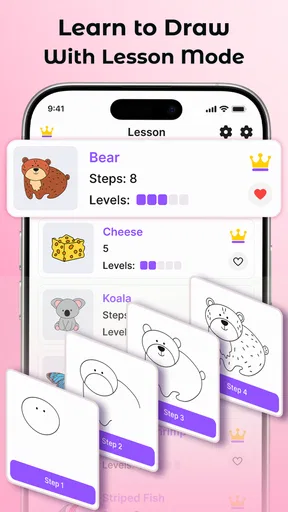
Yes, AR Draw Sketch is ideal for beginners. The app offers step-by-step guidance and projected outlines to assist users in learning how to draw. Additionally, it provides various tutorials and templates, making it easier for novices to practice and enhance their drawing abilities with confidence.
What features does AR Draw Sketch offer?
AR Draw Sketch comes equipped with a range of features, including a wide selection of templates, adjustable outline opacity, and a user-friendly interface. The app also allows for easy customization, enabling users to import their images and adjust the size and position of the outlines to fit their drawing surface perfectly.
Can I use AR Draw Sketch on both Android and iOS devices?
Yes, AR Draw Sketch is available on both Android and iOS platforms. The app is optimized for a variety of devices, ensuring a smooth and immersive drawing experience regardless of which operating system you use. Check your device's compatibility in the app store before downloading.
Are there any in-app purchases or subscriptions in AR Draw Sketch?
AR Draw Sketch offers both free and premium features. While the basic version provides plenty of functionality, users can opt for in-app purchases to unlock additional templates and advanced features. Subscription options are also available for those who want unlimited access to all the app’s premium content.


